Docker containers share the kernel with the underlying OS. What does this mean?
If we run Docker on a machine using a Linux distro like Ubuntu for example, we can run docker containers based on any other flavour of Linux, not just Ubuntu, as long as they share the same Linux kernel.
We cannot run a Windows-based docker container on a Linux machine, because Windows and Linux do not share the same kernel. We would need a Windows machine to run Windows-based containers.
Containers vs. Virtual Machines

Comparing to VMs, containers have…
- Lower resource utilisation as they do not need to run an entire operating system
- Smaller storage footprint, again due to not needing to duplicate operating system installations
- Faster boot up times
Container vs. Image
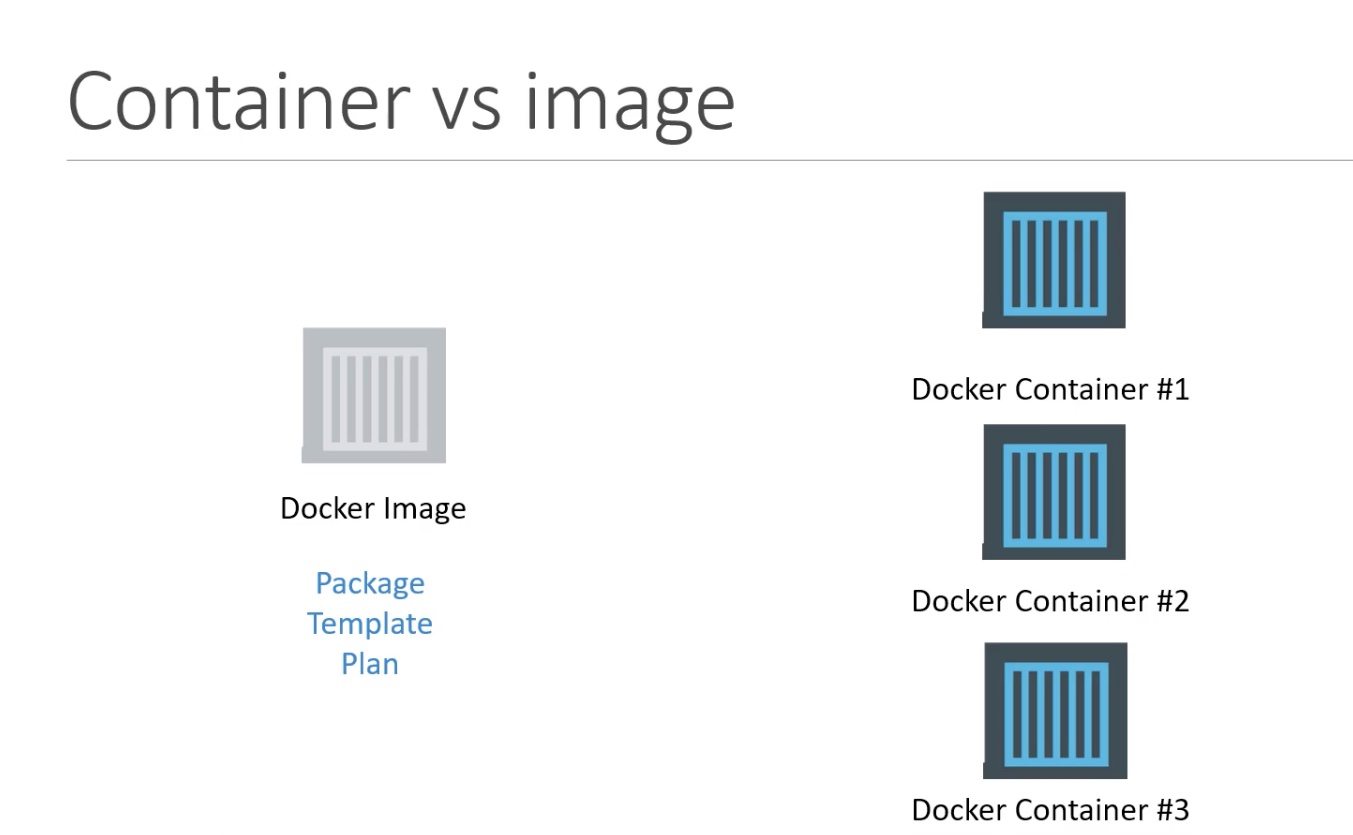
An image can be thought of as a template or package. It’s a set of instructions we can give to Docker to tell it how to construct a new container. We can push docker images to repositories, public or private, for later use.
A container then, is an instance of those instructions that we can now boot up and use. We can create many containers from the same set of instructions, and these containers will be logically isolated from one another.
Reasons to push to a private container repository:
- We can do security scanning on images that we can’t do when sourcing from DockerHub
- DockerHub has aggressive API rate limits (100 pulls/IP address per day maybe?), which can easily be exhausted if we bake DockerHub images into a pipeline consumed by many teams
For these reasons it is worth creating our own images in a private registry, even if we make no changes at all to the image.
View all containers (running and not running): docker ps -a
Get a bash shell inside a container: docker exec -it <container name> /bin/bash
Execute any command inside a container: docker exec -it <container name> <command>
Delete all docker containers: docker rm -f $(docker ps -a -q)
Delete all docker images: docker rmi -f $(docker images -aq)
DNS resolution issues
Restart docker/colima service
Dockerfile linting
hadolint/hadolint available as a docker image, see Linting
Which dockerfile designation?
Alpine, Slim, Stretch, Buster, Jessie, Bullseye, Bookworm - What are the Differences in Docker…
Authenticating against private nuget/npm feeds
https://github.com/Microsoft/artifacts-credprovider
dotnet-docker/nuget-credentials.md at main · dotnet/dotnet-docker
We can omit credentials in the nuget config file in the repository and in our Dockerfile specify:
RUN curl -L https://raw.githubusercontent.com/Microsoft/artifacts-credprovider/master/helpers/installcredprovider.sh  | sh
ENV VSS_NUGET_EXTERNAL_FEED_ENDPOINTS="{\"endpointCredentials\": [{\"endpoint\":\"https://myspecialnugetfeed.com/_packaging/my-awesome-feed/nuget/v3/index.json\", \"username\":\"myemail.address\", \"password\":\"${FEED_ACCESSTOKEN}\"}]}"
passing in FEED_ACCESSTOKEN as a build argument. VSS_NUGET_EXTERNAL_FEED_ENDPOINTS is a well-known env variable for the cred provider.
Colima
switching batect from docker desktop to colima
Colima on M1 Mac
SOLVED Initially I ran colima start which apparently creates a aarch64 VM and then every following colima start … no matter what arguments uses that VM. I had to colima delete first, then run colima start --arch x86_64 to create a x86_64 VM. Now things seem to be working.
SQL Server in docker
If trying to run SQL Server in docker on a machine that also has SQL Server running locally, you may see some funny connectivity issues. You just need to stop the SQL Server + agent processes running locally.
Cant run webpack-dev-server inside of a docker container? · Issue #547 · webpack/webpack-dev-server
why docker build send build context to docker daemon so slow
Docker best practices
Creating images
When to (not) use tags
Don’t specify tags:
- When doing rapid testing and prototyping.
- When experimenting.
- When you want the latest version.
Do specify tags:
- When recording a procedure into a script.
- When going to production.
- To ensure that the same version will be used everywhere.
- To ensure repeatability later.
This is similar to what we would do with pip install, npm install, etc.
Shell syntax vs exec syntax
Dockerfile commands that execute something can have two forms:
- plain string, or shell syntax:
RUN apt-get install figlet - JSON list, or exec syntax:
RUN ["apt-get", "install", "figlet"]
We are going to change our Dockerfile to see how it affects the resulting image.
History with exec syntax
Compare the new history:
$ docker history figlet
IMAGE         CREATED            CREATED BY                     SIZE
27954bb5faaf  10 seconds ago     apt-get install figlet         1.627 MB
7257c37726a1  About an hour ago  /bin/sh -c apt-get update      21.58 MB
07c86167cdc4  4 days ago         /bin/sh -c #(nop) CMD ["/bin   0 B
<missing>     4 days ago         /bin/sh -c sed -i 's/^#\s*\(   1.895 kB
<missing>     4 days ago         /bin/sh -c echo '#!/bin/sh'    194.5 kB
<missing>     4 days ago         /bin/sh -c #(nop) ADD file:b   187.8 MB
- Exec syntax specifies an exact command to execute.
- Shell syntax specifies a command to be wrapped within
/bin/sh -c "...".
When to use exec syntax and shell syntax
-
shell syntax:
- is easier to write
- interpolates environment variables and other shell expressions
- creates an extra process (
/bin/sh -c ...) to parse the string - requires
/bin/shto exist in the container
-
exec syntax:
- is harder to write (and read!)
- passes all arguments without extra processing
- doesn’t create an extra process
- doesn’t require
/bin/shto exist in the container
Pro-tip: the
execshell built-inPOSIX shells have a built-in command named
exec.execshould be followed by a program and its arguments.From a user perspective:
- it looks like the shell exits right away after the command execution,
- in fact, the shell exits just before command execution;
- or rather, the shell gets replaced by the command.
Example using
execCMD exec figlet -f script helloIn this example,
sh -cwill still be used, butfigletwill be PID 1 in the container.The shell gets replaced by
figletwhenfigletstarts execution.This allows to run processes as PID 1 without using JSON.
Adding
CMDto our DockerfileOur new Dockerfile will look like this:
FROM ubuntu RUN apt-get update RUN ["apt-get", "install", "figlet"] CMD figlet -f script helloCMDdefines a default command to run when none is given.- It can appear at any point in the file.
- Each
CMDwill replace and override the previous one. - As a result, while you can have multiple
CMDlines, it is useless.
Overriding
CMDIf we want to get a shell into our container (instead of running
figlet), we just have to specify a different program to run:$ docker run -it figlet bash root@7ac86a641116:/#- We specified
bash. - It replaced the value of
CMD.
Using
ENTRYPOINTWe want to be able to specify a different message on the command line, while retaining
figletand some default parameters.In other words, we would like to be able to do this:
$ docker run figlet salut
           _
          | |
 ,   __,  | |       _|_
/ \_/  |  |/  |   |  |
 \/ \_/|_/|__/ \_/|_/|_/
We will use the
ENTRYPOINTverb in Dockerfile.Adding
ENTRYPOINTto our DockerfileOur new Dockerfile will look like this:
FROM ubuntu RUN apt-get update RUN ["apt-get", "install", "figlet"] ENTRYPOINT ["figlet", "-f", "script"]ENTRYPOINTdefines a base command (and its parameters) for the container.- The command line arguments are appended to those parameters.
- Like
CMD,ENTRYPOINTcan appear anywhere, and replaces the previous value.
Why did we use JSON syntax for our
ENTRYPOINT?Implications of JSON vs string syntax
- When CMD or ENTRYPOINT use string syntax, they get wrapped in
sh -c. - To avoid this wrapping, we can use JSON syntax.
What if we used
ENTRYPOINTwith string syntax?$ docker run figlet salutThis would run the following command in the
figletimage:sh -c "figlet -f script" salutWhen to use
ENTRYPOINTvsCMDENTRYPOINTis great for “containerized binaries”.Example:
docker run consul --help(Pretend that the
docker runpart isn’t there!)CMDis great for images with multiple binaries.Example:
docker run busybox ifconfig(It makes sense to indicate which program we want to run!)
Local dev inside a container
Option 1:
- Edit the code locally
- Rebuild the image
- Re-run the container
Option 2:
- Enter the container (with
docker exec) - Install an editor
- Make changes from within the container
Option 3:
- Use a bind mount to share local files with the container
- Make changes locally
- Changes are reflected in the container
Exploring a crashed container
- We can restart a container with
docker start… - … But it will probably crash again immediately!
- We cannot specify a different program to run with
docker start - But we can create a new image from the crashed container
docker commit <container_id> debugimage- Then we can run a new container from that image, with a custom entrypoint
docker run -ti --entrypoint sh debugimageObtaining a complete dump
- We can also dump the entire filesystem of a container.
- This is done with
docker export. - It generates a tar archive.
docker export <container_id> | tar tvThis will give a detailed listing of the content of the container.
Tips for building efficient Dockerfiles
Reducing the number of layers
- Each line in a
Dockerfilecreates a new layer. - Build your
Dockerfileto take advantage of Docker’s caching system. - Combine commands by using
&&to continue commands and\to wrap lines.
Note: it is frequent to build a Dockerfile line by line:
RUN apt-get install thisthing
RUN apt-get install andthatthing andthatotherone
RUN apt-get install somemorestuff
And then refactor it trivially before shipping:
RUN apt-get install thisthing andthatthing andthatotherone somemorestuffAvoid re-installing dependencies at each build
-
Classic Dockerfile problem:
“each time I change a line of code, all my dependencies are re-installed!”
-
Solution:
COPYdependency lists (package.json,requirements.txt, etc.) by themselves to avoid reinstalling unchanged dependencies every time.
Example “bad”
DockerfileThe dependencies are reinstalled every time, because the build system does not know if
requirements.txthas been updated.FROM python WORKDIR /src COPY . . RUN pip install -qr requirements.txt EXPOSE 5000 CMD ["python", "app.py"]Fixed
DockerfileAdding the dependencies as a separate step means that Docker can cache more efficiently and only install them when
requirements.txtchanges.FROM python WORKDIR /src COPY requirements.txt . RUN pip install -qr requirements.txt COPY . . EXPOSE 5000 CMD ["python", "app.py"]Embedding unit tests in the build process
FROM <baseimage> RUN <install dependencies> COPY <code> RUN <build code> RUN <install test dependencies> COPY <test data sets and fixtures> RUN <unit tests> FROM <baseimage> RUN <install dependencies> COPY <code> RUN <build code> CMD, EXPOSE ...- The build fails as soon as an instruction fails
- If
RUN <unit tests>fails, the build doesn’t produce an image - If it succeeds, it produces a clean image (without test libraries and data)
Volumes
Volumes can be used for two things:
- Mounting an existing directory on the host machine into a container, e.g.:
docker run \ --rm \ -v "$PROJECT_DIR:/code" \- Have a directory in a container and its contents persist between runs, e.g.:
docker run \
  --rm \
  -v "myvolume:/root/.nuget/packages" \
Running arbitrary commands in a container
Define a Dockerfile with no entrypoint, e.g.:
FROM mcr.microsoft.com/dotnet/core/sdk:3.1.419
// any other relevant container setup
Build said container:
docker build -t "mydotnetcontainerenv:0.0.0" /path/to/dockerfile
Run any command in container, e.g.:
docker run \
  --rm \
  "mydotnetcontainerenv:0.0.0" \
  "dotnet build"
// the dotnet build _may_ not need to be quoted, not sure
What are <none>:<none> images?
What are Docker <none>:<none> images?
Remove dangling images
docker rmi $(docker images -f "dangling=true" -q)